 ameya labs
Repeated address or different addresses?
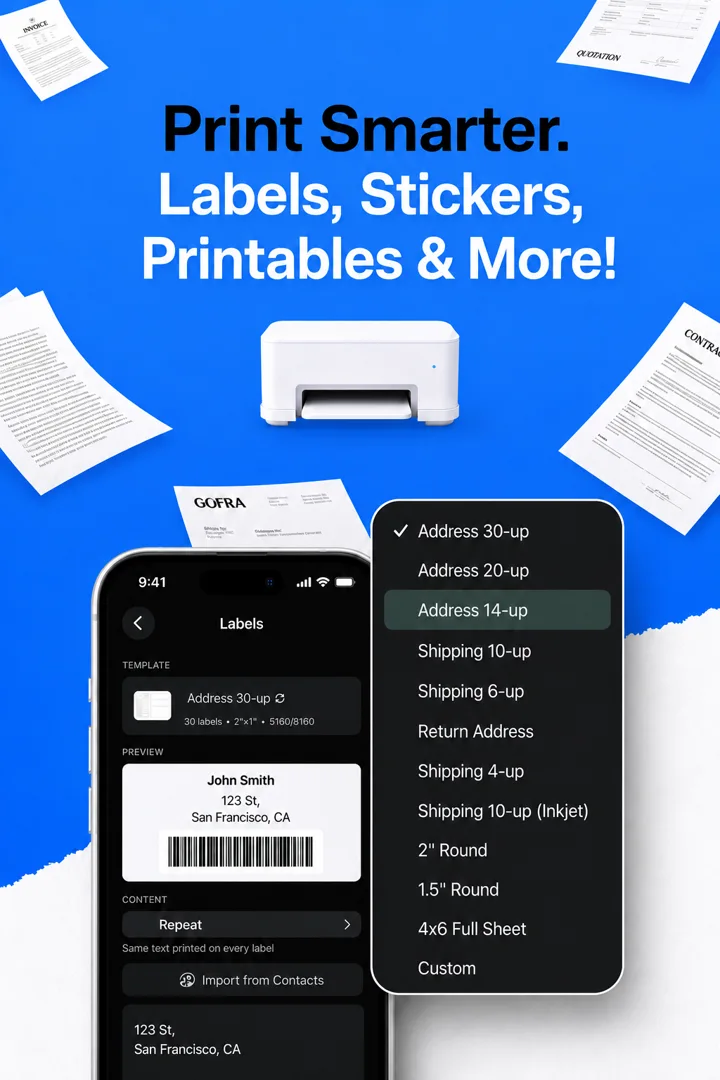
Use repeated labels for a return address or a set of identical packages. For different recipients, use the bulk-label workflow. Smart Printer App supports entries separated by blank lines and can import postal addresses from selected Contacts.
The Contacts import uses the first postal address for each person. Review the result before printing. An old home address or an office address in the first position can otherwise produce a perfectly neat label for the wrong destination. This is not a CSV mail-merge importer.
Prepare the sheet
- Open Labels in Smart Printer App.
- Choose the template that matches your sheet, or configure a custom grid.
- Enter your repeated text or add the bulk addresses.
- Check the font size and each address block. Long lines need room.
- Save the PDF to Files if you want to inspect it, or continue to Print.
Custom grid controls use Letter paper, so do not assume that a custom layout matches an A4 sheet.
Test alignment on plain paper first
Template names are a starting point, not proof that every printer will align them. Print on plain paper and hold it behind an unused label sheet against a light. Check the top, middle and bottom rows. If the difference grows down the page, scaling or spacing may be involved.
Review paper size and scaling in the print route you use. If the route cannot preserve the required dimensions, use the exported PDF in a workflow that gives you the necessary control. Do not spend a pack of labels trying to compensate by eye.
Keep the address easy to read
Decorative fonts and large logos can look good in a preview but crowd a postal address. Start with plain, dark text and generous space. Add decoration only after the address fits comfortably.
Smart Printer App is not affiliated with Avery. Named templates still need an alignment check with your stock and printer; we do not claim certified fit for a particular combination.
Sources and further reading
Written by Ameya Labs, makers of Smart Printer App. Printer settings and results depend on your model; check a sample before making multiple copies. Something unclear? Tell us.