 ameya labs
Two ways to send a print job
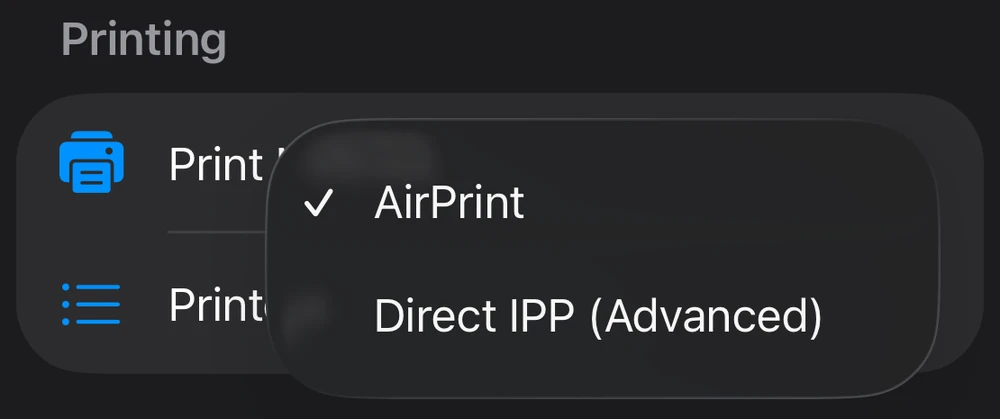
Smart Printer App offers AirPrint and Direct IPP. AirPrint opens Apple’s print panel. Direct IPP lets the app discover compatible network printers, read their capabilities, and send a job directly. IPP stands for Internet Printing Protocol; despite the name, a local print job does not need to travel across the public internet.
The modes overlap, but they are not interchangeable guarantees. A printer needs to accept both the protocol and a document format the app can send. A Wi-Fi badge on the box tells you how the printer connects, not which print formats it accepts.
Check the connection before changing modes
- Wake the printer and check that it has paper and no active error.
- Connect the iPhone and printer to the same local network. A guest network may prevent devices from seeing one another.
- Allow Smart Printer App to access the local network in iPhone Settings.
- If you use a VPN, check whether it blocks local-device access. Follow your organization’s rules on a managed network.
Changing print modes cannot make two isolated devices communicate. A printer connected by Ethernet to the same router may be reachable even though the printer itself is not using Wi-Fi.
Try Direct IPP in Smart Printer App
- Open Smart Printer App’s Settings.
- Under Printing, open Print Method.
- Choose Direct IPP (Advanced).
- Open Printers and look for your printer.
- Start with a simple one-page document. Check the paper, color and copy settings before sending it.
Keep AirPrint as your first choice when it works well. Direct IPP is an alternative worth trying when a compatible printer is not working through the normal AirPrint route. Start with the onboarding test print if you are setting up a printer for the first time.
What switching modes will not fix
Some printers rely on proprietary host-based formats. Some office printers require accounting information the app cannot supply. A printer can also accept photos but not the same document formats as another model.
If neither mode works, check the manufacturer’s specifications for AirPrint, IPP and supported document formats. Send our support team the exact model and the error you see. “It has Wi-Fi” is not enough information to promise compatibility, and we would rather help you check than waste your paper.
Sources and further reading
Written by Ameya Labs, makers of Smart Printer App. Printer settings and results depend on your model; check a sample before making multiple copies. Something unclear? Tell us.